DOWNLOADING
Source repo: sdsc-summer-institute-2023 | Branch:
main| Last synced: 2026-04-24 10:27:17.425 UTC
CIFAR through the tubes: Downloading data from the internet
"the Internet is not ... a big truck. It's a series of tubes." -- Theodore Fulton Stevens Sr. 🎶 🎤
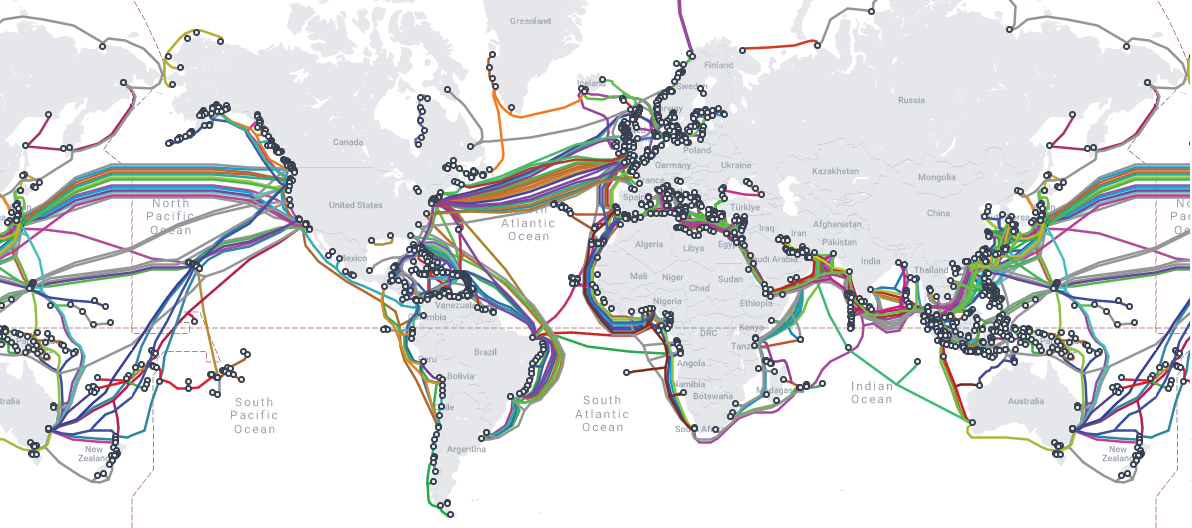
Image Credit: Submarine Cable Map
The aim of this tutorial is to introduce you to command-line tools that are useful for downloading data from the internet to your personal computer or an HPC system, and verifing the data is correct. The dataset we'll be working with is the CIFAR-10 dataset, a machine learning dataset that consists of 60K 32x32 colour images broken out into 10 classes, with 6000 images per class.
Let's get started by logging into Expanse with your training account either via the Expanse User Portal or directly via SSH from your terminal application.
Command:
ssh trainXXX@login.expanse.sdsc.edu
Output:
mkandes@hardtack:~$ ssh train108@login.expanse.sdsc.edu
Password:
Welcome to Bright release         9.0

                                                         Based on Rocky Linux 8
                                                                    ID: #000002

--------------------------------------------------------------------------------

                                 WELCOME TO
                  _______  __ ____  ___    _   _______ ______
                 / ____/ |/ // __ \/   |  / | / / ___// ____/
                / __/  |   // /_/ / /| | /  |/ /\__ \/ __/
               / /___ /   |/ ____/ ___ |/ /|  /___/ / /___
              /_____//_/|_/_/   /_/  |_/_/ |_//____/_____/

--------------------------------------------------------------------------------

Use the following commands to adjust your environment:

'module avail'            - show available modules
'module add `module`'     - adds a module to your environment for this session
'module initadd `module`' - configure module to be loaded at every login

-------------------------------------------------------------------------------
Last login: Sun Aug  6 16:30:09 2023 from 68.1.220.190
[train108@login02 ~]$
Once you are logged into Expanse, please go ahead and download the CIFAR-10 dataset using wget, a command-line program for retrieving files via HTTP, HTTPS, FTP and FTPS protocols.
Command:
wget https://www.cs.toronto.edu/~kriz/cifar-10-python.tar.gz
Output:
[train108@login02 ~]$ wget https://www.cs.toronto.edu/~kriz/cifar-10-python.tar.gz
--2023-08-06 16:46:48--  https://www.cs.toronto.edu/~kriz/cifar-10-python.tar.gz
Resolving www.cs.toronto.edu (www.cs.toronto.edu)... 128.100.3.30
Connecting to www.cs.toronto.edu (www.cs.toronto.edu)|128.100.3.30|:443... connected.
HTTP request sent, awaiting response... 200 OK
Length: 170498071 (163M) [application/x-gzip]
Saving to: ‘cifar-10-python.tar.gz’

cifar-10-python.tar 100%[===================>] 162.60M  36.5MB/s    in 4.9s

2023-08-06 16:46:55 (32.9 MB/s) - ‘cifar-10-python.tar.gz’ saved [170498071/170498071]

[train108@login02 ~]$
After the download completes, go ahead and list the files in your HOME directory using the ls command to check out how much data we've downloaded.
Command:
ls -lh
Output:
[train108@login02 ~]$ ls -lh
total 163M
-rw-r--r-- 1 train108 gue998 163M Jun  4  2009 cifar-10-python.tar.gz
lrwxrwxrwx 1 train108 gue998   32 Aug  6 14:45 data -> /cm/shared/examples/sdsc/si/2023
[train108@login02 ~]$
The dataset we've downloaded has been delieved to us as a gzip-compressed tar file. To extract the dataset from the "tarball", use the tar command.
Command:
tar -xf cifar-10-python.tar.gz
Output:
[train108@login02 ~]$ tar -xf cifar-10-python.tar.gz
[train108@login02 ~]$
With the data extracted from the tarball, let's go ahead and check out what's inside.
Command:
ls -lh
Output:
[train108@login02 ~]$ ls -lh
total 163M
drwxr-xr-x 2 train108 gue998   10 Jun  4  2009 cifar-10-batches-py
-rw-r--r-- 1 train108 gue998 163M Jun  4  2009 cifar-10-python.tar.gz
lrwxrwxrwx 1 train108 gue998   32 Aug  6 14:45 data -> /cm/shared/examples/sdsc/si/2023
[train108@login02 ~]$
What type of files are these? Let's check the CIFAR-10 website again. See Pickle.
Command:
ls -lh cifar-10-batches-py/
Output:
[train108@login02 ~]$ ls -lh cifar-10-batches-py/
total 177M
-rw-r--r-- 1 train108 gue998 158 Mar 30  2009 batches.meta
-rw-r--r-- 1 train108 gue998 30M Mar 30  2009 data_batch_1
-rw-r--r-- 1 train108 gue998 30M Mar 30  2009 data_batch_2
-rw-r--r-- 1 train108 gue998 30M Mar 30  2009 data_batch_3
-rw-r--r-- 1 train108 gue998 30M Mar 30  2009 data_batch_4
-rw-r--r-- 1 train108 gue998 30M Mar 30  2009 data_batch_5
-rw-r--r-- 1 train108 gue998  88 Jun  4  2009 readme.html
-rw-r--r-- 1 train108 gue998 30M Mar 30  2009 test_batch
[train108@login02 ~]$
How do we know the data we've downloaded from the internet is correct? How do we prove we all have the same data? Hash it. Let's start with the traditional md5sum command-line program.
Command:
md5sum cifar-10-python.tar.gz
Output:
[train108@login02 ~]$ md5sum cifar-10-python.tar.gz
c58f30108f718f92721af3b95e74349a  cifar-10-python.tar.gz
[train108@login02 ~]$
Next let's save the computed hash for the dataset as a file.
Command:
md5sum cifar-10-python.tar.gz > cifar-10-python.md5
Output:
[train108@login02 ~]$ md5sum cifar-10-python.tar.gz > cifar-10-python.md5
[train108@login02 ~]$
Check that the hash file we created exists.
Command:
ls -lh
Output:
[train108@login02 ~]$ ls -lh
total 163M
drwxr-xr-x 2 train108 gue998   10 Jun  4  2009 cifar-10-batches-py
-rw-r--r-- 1 train108 gue998   57 Aug  7 10:35 cifar-10-python.md5
-rw-r--r-- 1 train108 gue998 163M Jun  4  2009 cifar-10-python.tar.gz
lrwxrwxrwx 1 train108 gue998   32 Aug  6 14:45 data -> /cm/shared/examples/sdsc/si/2023
[train108@login02 ~]$
Now, let's use the hash file to check the integrity of the dataset again.
Command:
md5sum -c cifar-10-python.md5
Output:
[train108@login02 ~]$ md5sum -c cifar-10-python.md5
cifar-10-python.tar.gz: OK
[train108@login02 ~]$
There are other command-line programs you can use to download data from the internet. One other commonly used one (with a larger scope of features) is curl. Let's download the CIFAR-10 dataset again with curl, but rename the new tarball so that we don't overwrite the original one.
Command:
curl https://www.cs.toronto.edu/~kriz/cifar-10-python.tar.gz -o cifar-10-python.tgz
Output:
[train108@login02 ~]$ curl https://www.cs.toronto.edu/~kriz/cifar-10-python.tar.gz -o cifar-10-python.tgz
  % Total    % Received % Xferd  Average Speed   Time    Time     Time  Current
                                 Dload  Upload   Total   Spent    Left  Speed
100  162M  100  162M    0     0  30.2M      0  0:00:05  0:00:05 --:--:-- 33.9M
[train108@login02 ~]$
Confirm you have two copies of the compressed dataset now.
Command:
ls -lh
Output:
[train108@login02 ~]$ ls -lh
total 326M
drwxr-xr-x 2 train108 gue998   10 Jun  4  2009 cifar-10-batches-py
-rw-r--r-- 1 train108 gue998   57 Aug  7 10:35 cifar-10-python.md5
-rw-r--r-- 1 train108 gue998 163M Jun  4  2009 cifar-10-python.tar.gz
-rw-r--r-- 1 train108 gue998 163M Aug  7 11:05 cifar-10-python.tgz
lrwxrwxrwx 1 train108 gue998   32 Aug  6 14:45 data -> /cm/shared/examples/sdsc/si/2023
[train108@login02 ~]$
How can we show this data is the same? Maybe let's use a more secure hash algorithm to check. Download this SHA-256 hash file for the datasent.
Command:
wget https://raw.githubusercontent.com/sdsc/sdsc-summer-institute-2022/main/2.5_data_management/cifar-10-python.sha256
Output:
[train108@login02 ~]$ wget https://raw.githubusercontent.com/sdsc/sdsc-summer-institute-2022/main/2.5_data_management/cifar-10-python.sha256
--2023-08-07 11:10:30--  https://raw.githubusercontent.com/sdsc/sdsc-summer-institute-2022/main/2.5_data_management/cifar-10-python.sha256
Resolving raw.githubusercontent.com (raw.githubusercontent.com)... 185.199.111.133, 185.199.109.133, 185.199.110.133, ...
Connecting to raw.githubusercontent.com (raw.githubusercontent.com)|185.199.111.133|:443... connected.
HTTP request sent, awaiting response... 200 OK
Length: 86 [text/plain]
Saving to: ‘cifar-10-python.sha256’

cifar-10-python.sha 100%[===================>]      86  --.-KB/s    in 0s

2023-08-07 11:10:31 (7.44 MB/s) - ‘cifar-10-python.sha256’ saved [86/86]

[train108@login02 ~]$
Run the checksum.
Command:
sha256sum -c cifar-10-python.sha256
Output:
[train108@login02 ~]$ sha256sum -c cifar-10-python.sha256
cifar-10-python.tgz: OK
[train108@login02 ~]$
Next - More files, more problems: Advantages and limitations of different filesystems